
If you are on a MAC contact helpdesk@agentservices.ca with your direct contact phone number and we will reach out to remote in and set up the printer for you.
If you have the printer installed on your MAC, please follow these instructions on how to print. MAC – How To Print
If you are experiencing issues getting the printer setup on Windows also feel free to reach out.
-
- Download the latest PCL 6 Driver Below by clicking the button for your office, then run the download
AGENT PRINT DRIVER
STAFF POP UP DRIVERS
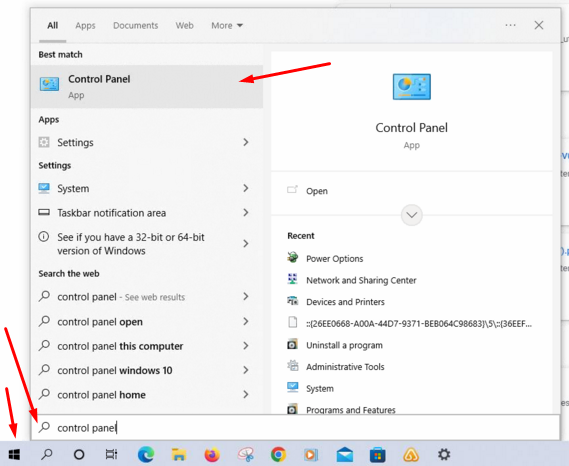
2. Click the start button, type ‘Control Panel” Click control panel app
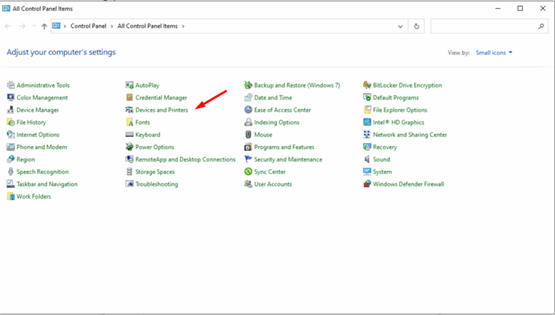
3. Find and click Devices and Printer
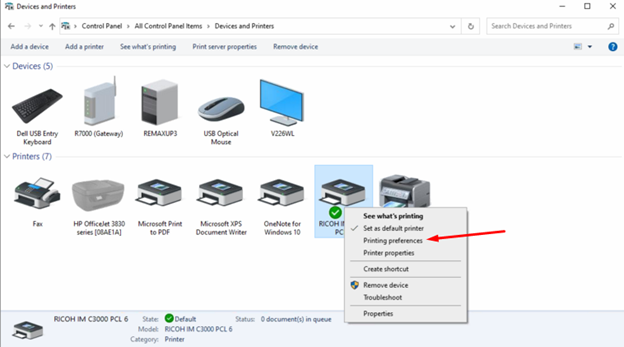
4. Right click the printer we just installed and click Printer Preferences.
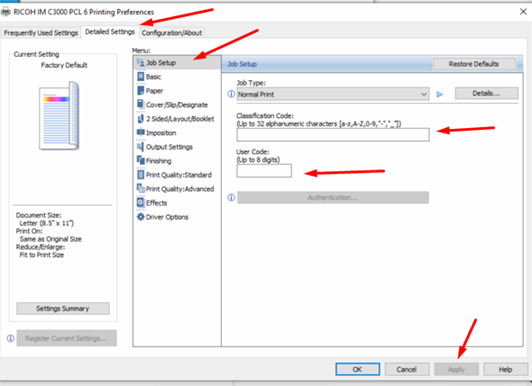
5. Click Detailed settings, click Job Setup, Enter your printer code in the classification and user code boxes, click apply and then ok.
6. Perform a test print and you have completed the setup.